
2.3 KiB
### How to use the Bluetooth remote control function of your Flipper :
Once your Flipper is turned on, navigate with the "up" and "down" buttons until you reach the "Plugins" menu
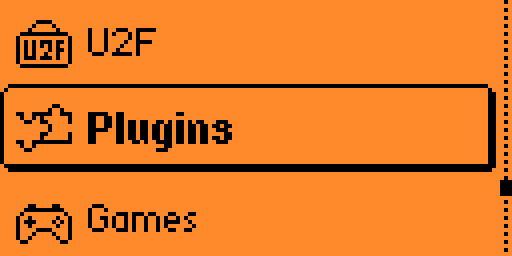
Enter with the "middle" button and choose the "Bluetooth Remote" function
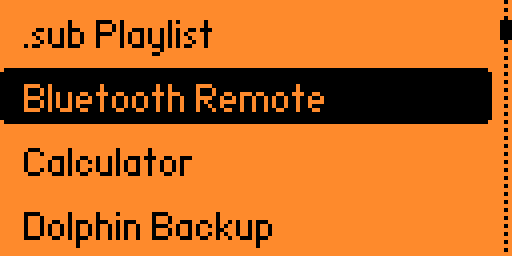
From this menu (and only this one), you will find a new bluetooth device named Control "Flipper Name"
Pair your Phone/Tablet/Computer/... to this device and you're good to go for controlling your remote devices ! (I skip the doc on how to pair 2 bluetooth devices...)
Once paired, the Flipper LED will remain blue/fixed throughout the session in the "Bluetooth Remote" menu. If you leave the menu, the led goes off/the Bluetooth connection disappears: The blue led is a good way to know if you are connected or not.
You will find in the main menu the different types of remote controls available
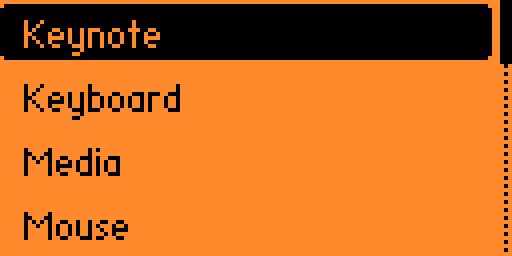
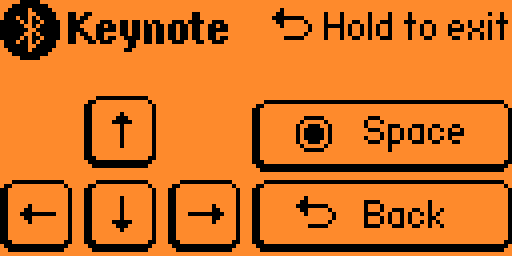
Keynote
Ultra simplified keyboard only for moving around in a document for example, or for certain presentations (Powerpoint or others...)
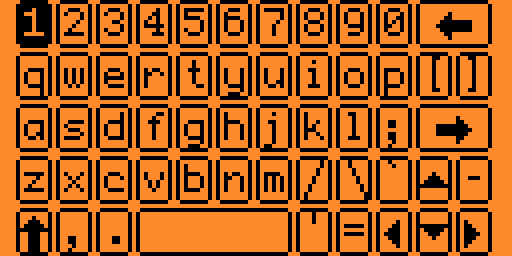
Full keyboard
You know what it is and how to use it ;)
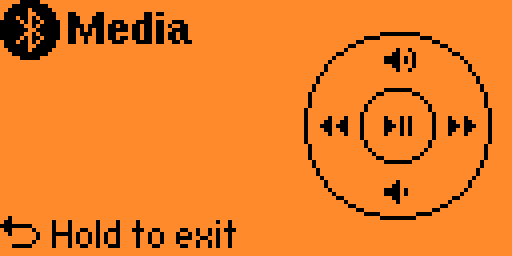
Media
Up : Volume increase Down: Volume decrease Middle : Play/Stop Left : Rewind Right : Forward
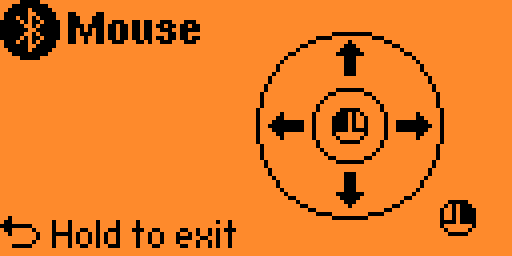
Mouse
Up : Up Down : Down Left : Left Right : Right Middle : Mouse Left button Back : Mouse Right Button
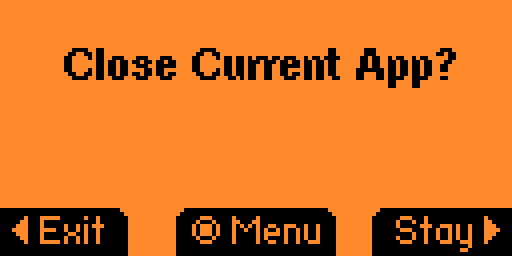
To exit each menu, simply long press the "back" button, which gives you the option to choose to leave the Bluetooth menu for good, choose another remote or stay on the one you were on.
Doc by Foul (2022).