mirror of
https://github.com/Next-Flip/Momentum-Firmware.git
synced 2026-04-25 03:29:58 -07:00

59 lines
2.3 KiB
Markdown
59 lines
2.3 KiB
Markdown
_### How to use the Bluetooth remote control function of your Flipper :_
|
|
|
|
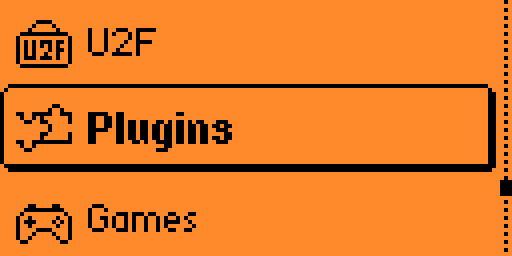
Once your Flipper is turned on, navigate with the "up" and "down" buttons until you reach the "Plugins" menu
|
|
|
|
|
|
|
|
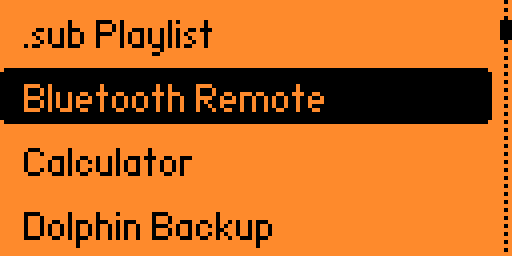
Enter with the "middle" button and choose the "Bluetooth Remote" function
|
|
|
|
|
|
|
|
From this menu (**and only this one**), you will find a new bluetooth device named _Control "Flipper Name"_
|
|
|
|
Pair your Phone/Tablet/Computer/... to this device and you're good to go for controlling your remote devices ! (I skip the doc on how to pair 2 bluetooth devices...)
|
|
|
|
Once paired, the Flipper LED will remain blue/fixed throughout the session in the "Bluetooth Remote" menu. If you leave the menu, the led goes off/the Bluetooth connection disappears: The blue led is a good way to know if you are connected or not.
|
|
|
|
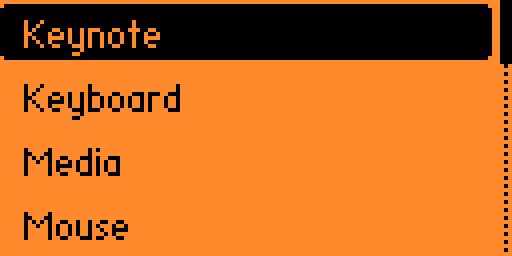
You will find in the main menu the different types of remote controls available
|
|
|
|
|
|
|
|
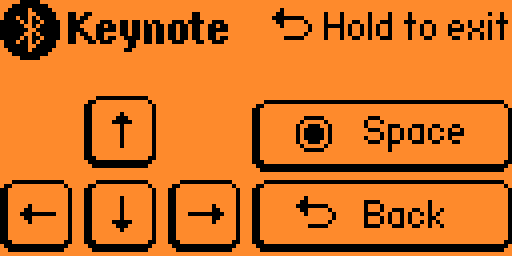
**Keynote**
|
|
|
|
Ultra simplified keyboard only for moving around in a document for example, or for certain presentations (Powerpoint or others...)
|
|
|
|
|
|
|
|
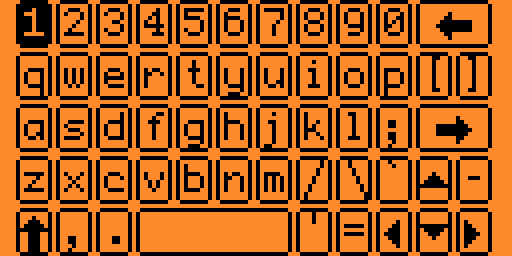
**Full keyboard**
|
|
|
|
You know what it is and how to use it ;)
|
|
|
|
|
|
|
|
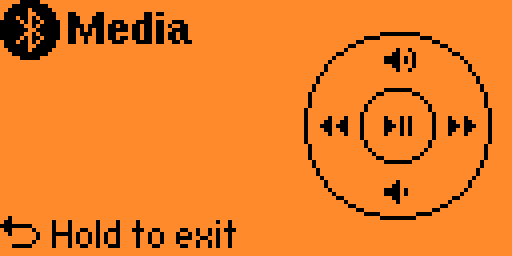
**Media**
|
|
|
|
Up : Volume increase
|
|
Down: Volume decrease
|
|
Middle : Play/Stop
|
|
Left : Rewind
|
|
Right : Forward
|
|
|
|
|
|
|
|
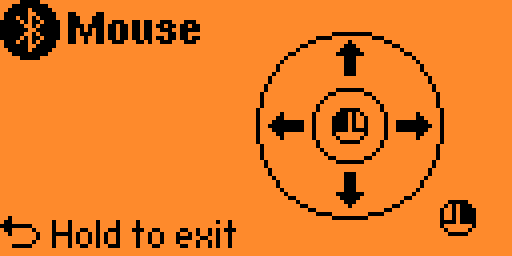
**Mouse**
|
|
|
|
Up : Up
|
|
Down : Down
|
|
Left : Left
|
|
Right : Right
|
|
Middle : Mouse Left button
|
|
Back : Mouse Right Button
|
|
|
|
|
|
|
|
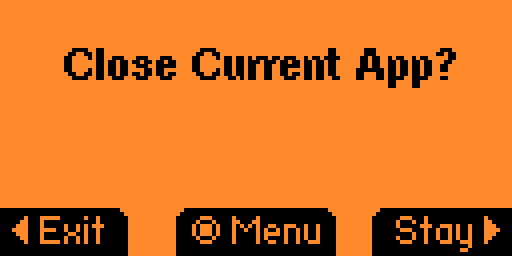
To **exit** each menu, simply **long press the "back" button**, which gives you the option to choose to leave the Bluetooth menu for good, choose another remote or stay on the one you were on.
|
|
|
|
|
|
|
|
Doc by Foul (2022).
|